
Give your students a more dynamic way to submit their work. The Audio Assignment for LearnDash add-on enables students to seamlessly record and submit audio assignments directly on your platform, making the learning experience more interactive and accessible.
Installation #
- Install the LearnDash plugin & activate it.
- Install the Audio Assignment For LearnDash add-on and activate it.
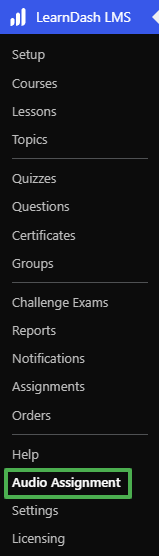
- There will be a new “Audio Assignment” menu added under the LearnDash menu.
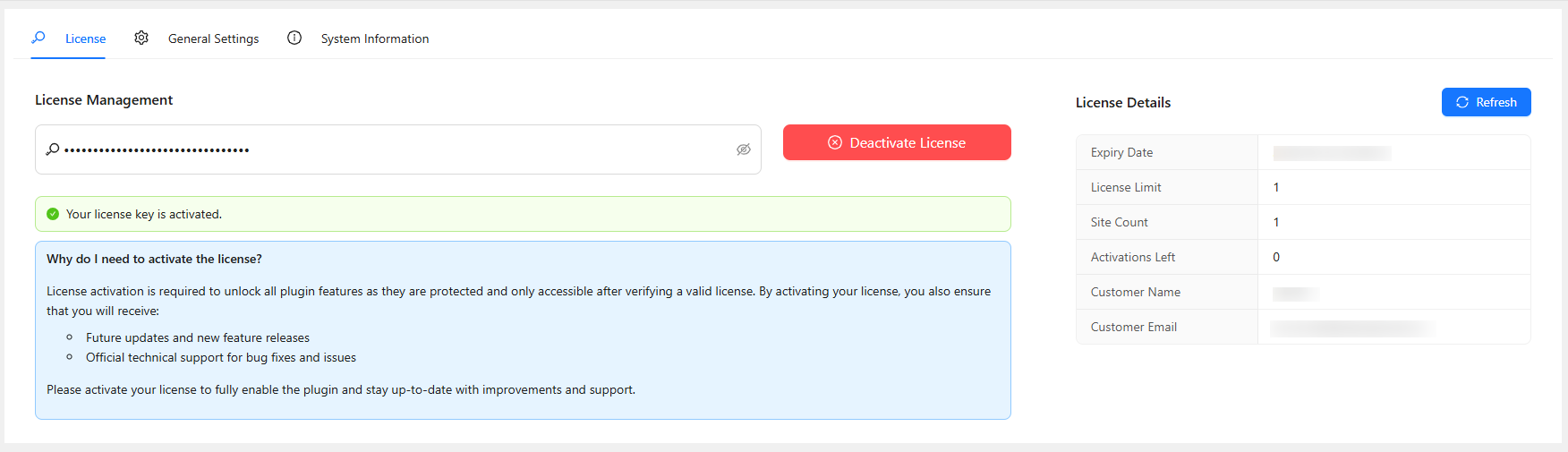
License #
License activation is required to unlock all plugin features, as they are protected and only accessible after verifying a valid license. Navigate to the License tab, enter your license key in the field, and click Activate License. Your license key can be found in the email received when you purchased the add-on.
Audio Assignment Settings (Lesson/Topic Level) #
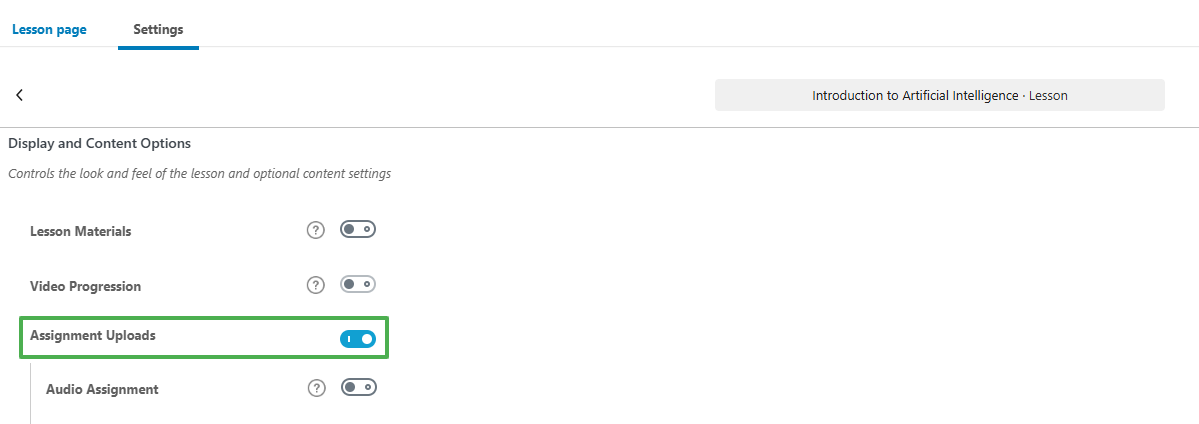
To begin accepting audio submissions, simply go to the specific Lesson or Topic settings where you want to allow audio assignments. First, enable the “Assignment Uploads” toggle. This activates the standard LearnDash assignment functionality for that particular Lesson or Topic.
Audio Assignment #
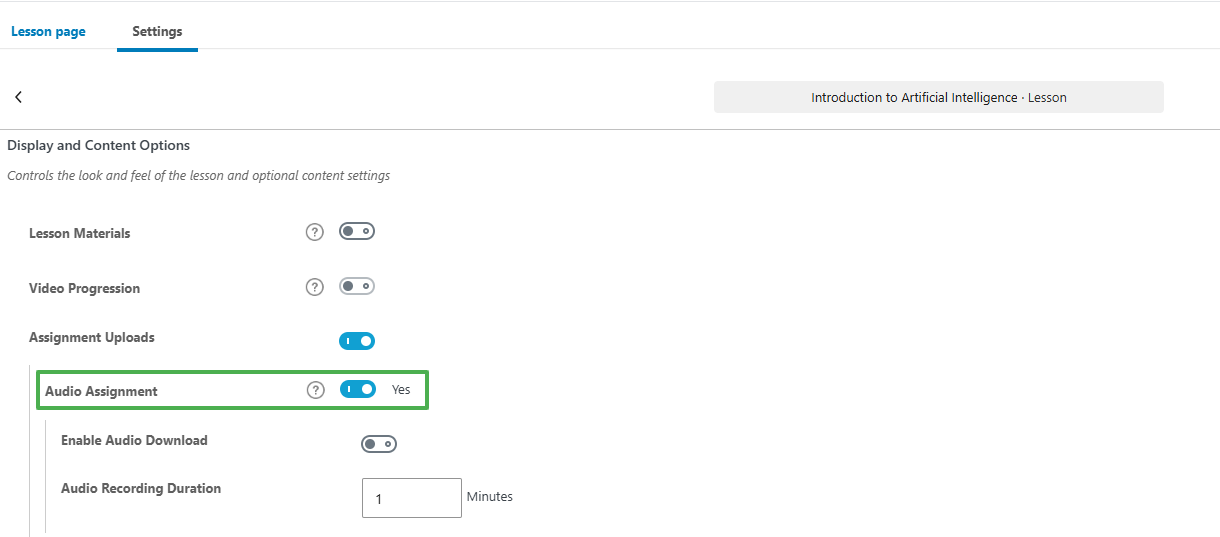
Once standard assignments are enabled, the “Audio Assignment” option will appear. Enabling this option transforms the default upload button into our modernized audio recording interface, allowing students to submit real-time audio as their assignment.
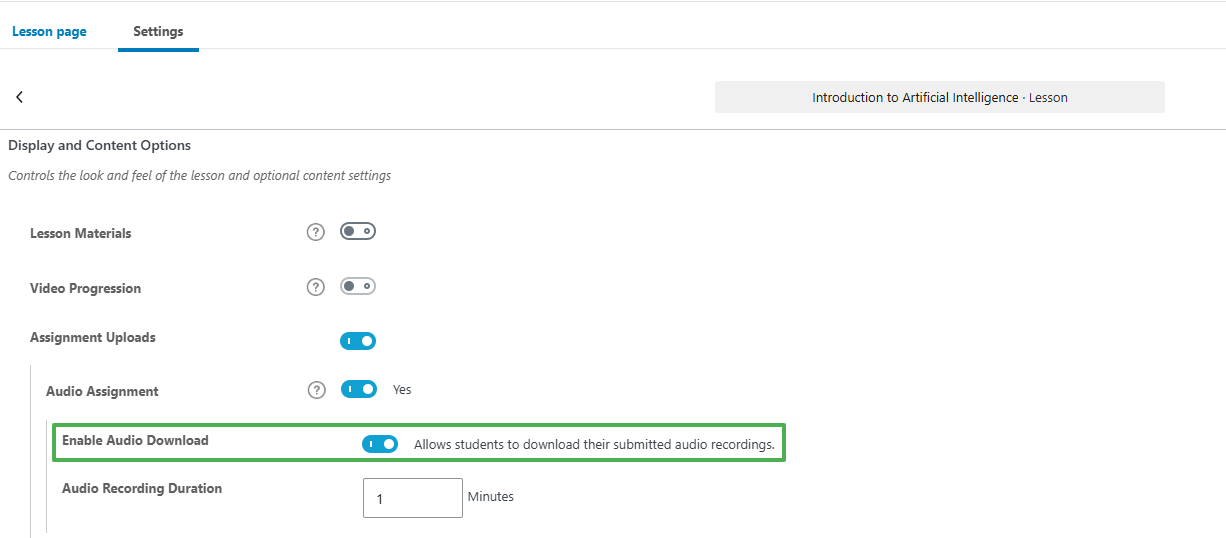
Audio Download #
Enabling this option allows students to easily download and save their submitted audio recordings for future reference with just a single click.
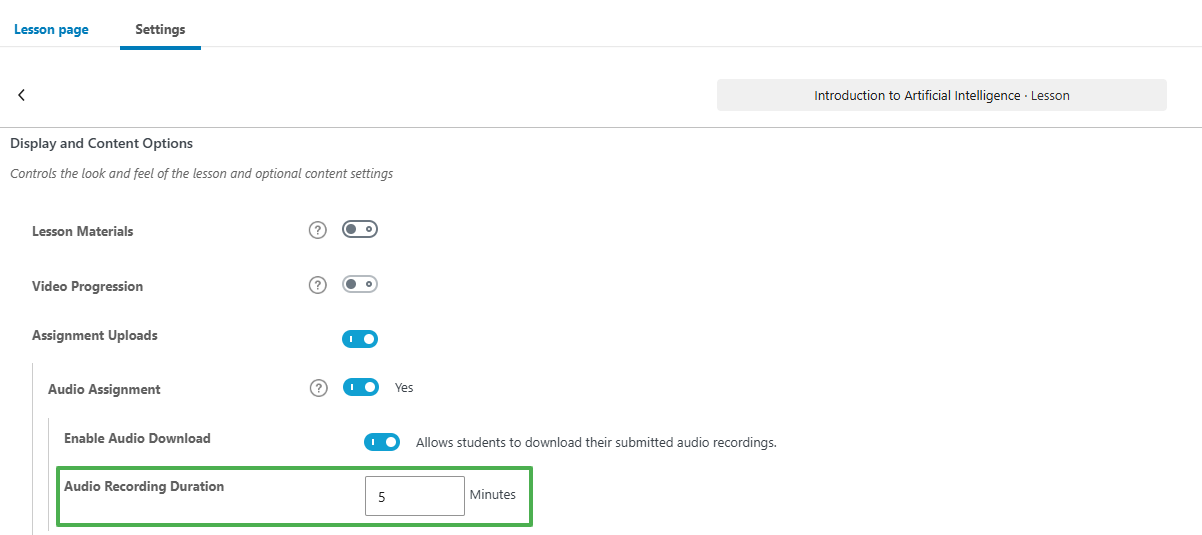
Audio Recording Duration #
In this field, you can set a specific limit for the total audio recording duration (in minutes). This ensures students keep their answers concise and focused.
General Settings #
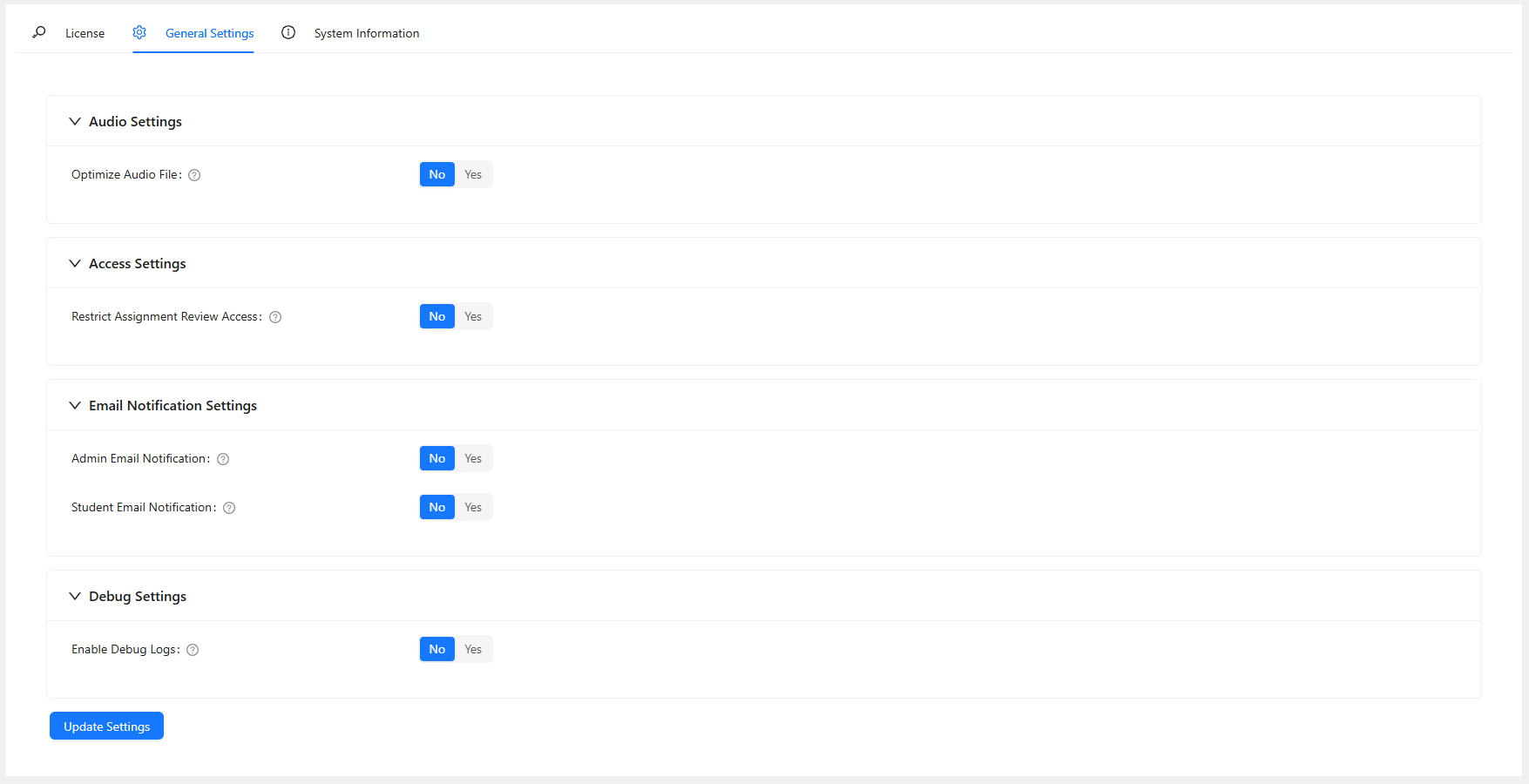
The General Settings tab is divided into four logical sections: Audio Settings, Access Settings, Email Notification Settings, and Debug Settings.
1. Audio Settings #
- Optimize Audio File: Enable this to compress audio recordings before uploading. This significantly reduces file sizes, saving storage space and speeding up upload times for students.
Backend:

Frontend:
2. Access Settings #
- Restrict Assignment Review Access: Control which WordPress user roles have permission to review student audio assignments and provide audio feedback.

- Authorized Roles: If access is restricted, select one or more authorized user roles (such as Administrators, Editors, or Group Leaders) that are allowed to review assignments and submit feedback. If the Group Leader role is deselected, they will no longer be able to record audio feedback, but they can still view assignments belonging to users in their group.

3. Email Notification Settings #
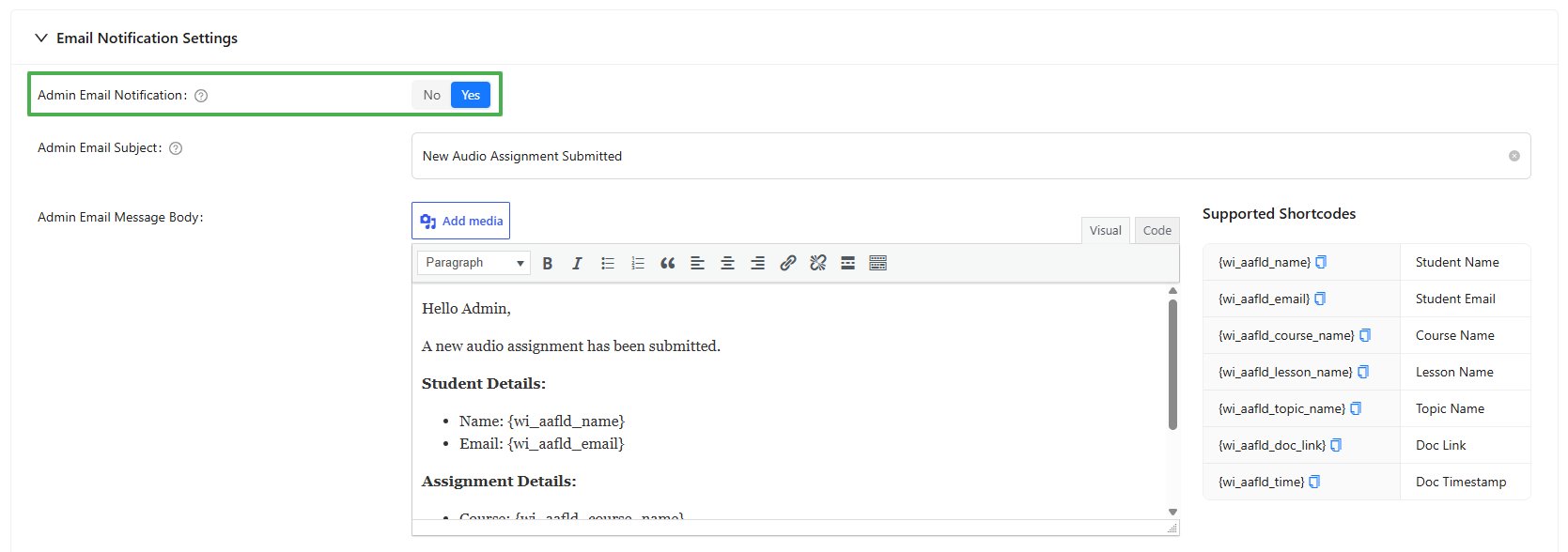
Admin Email Notification #
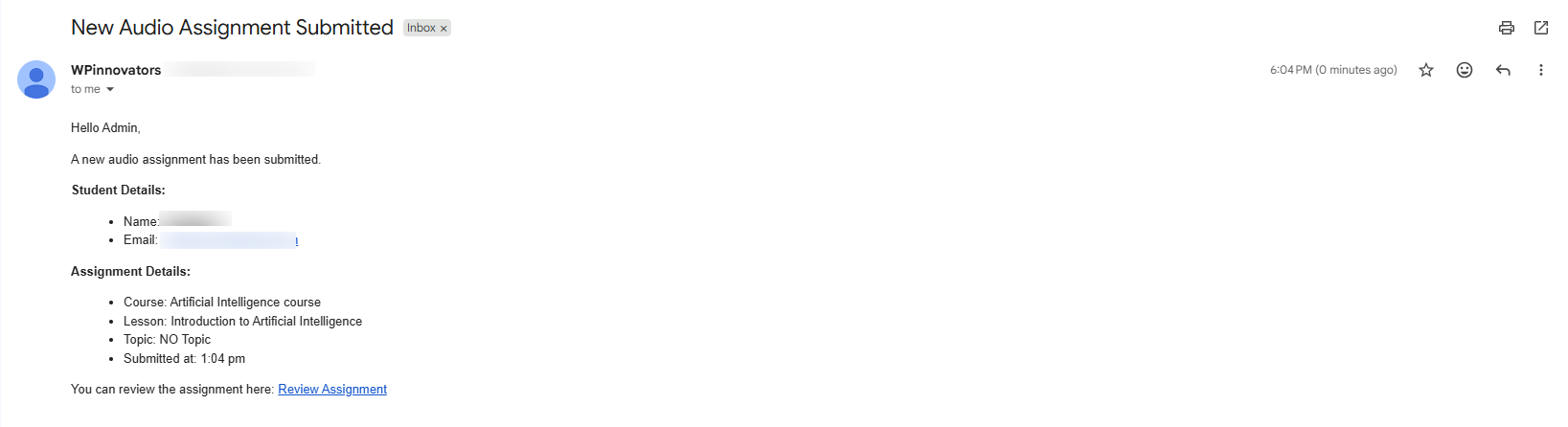
- Admin Email Notification: Send an automatic email to the site administrators whenever a student submits a new audio assignment.
- Admin Email Subject & Message Body: Customize the subject line and the content of the admin notification email using supported placeholders like
{wi_aafld_name}and{wi_aafld_course_name}.
Backend:
Frontend:
Student Email Notification #
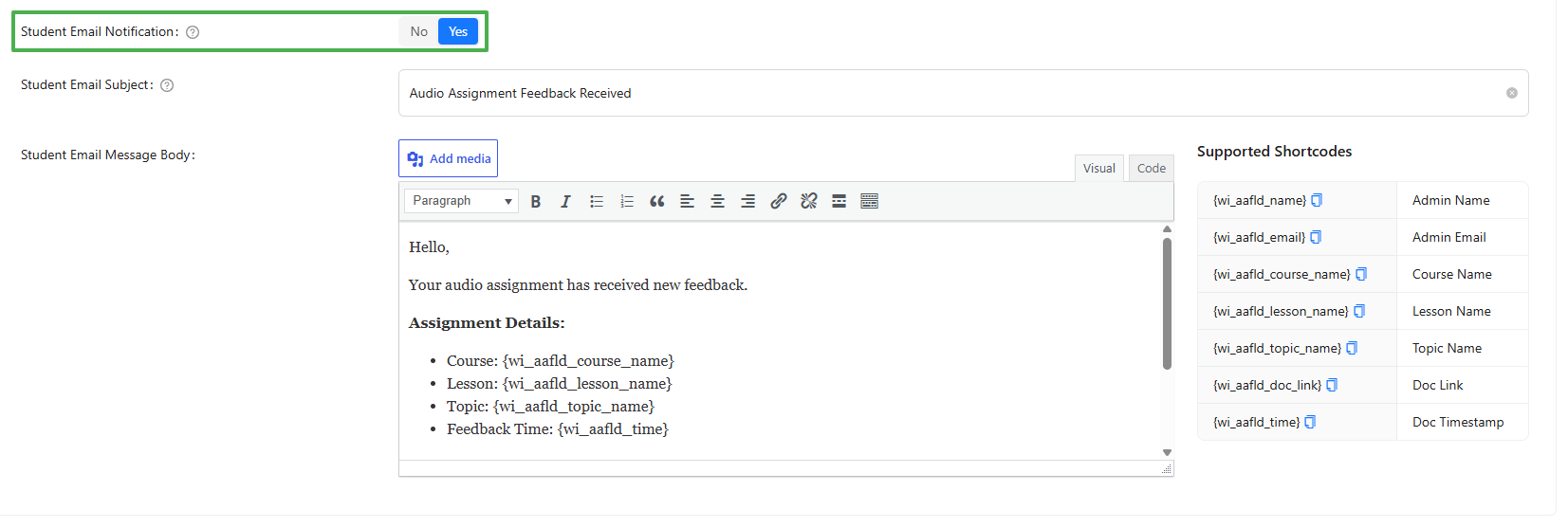
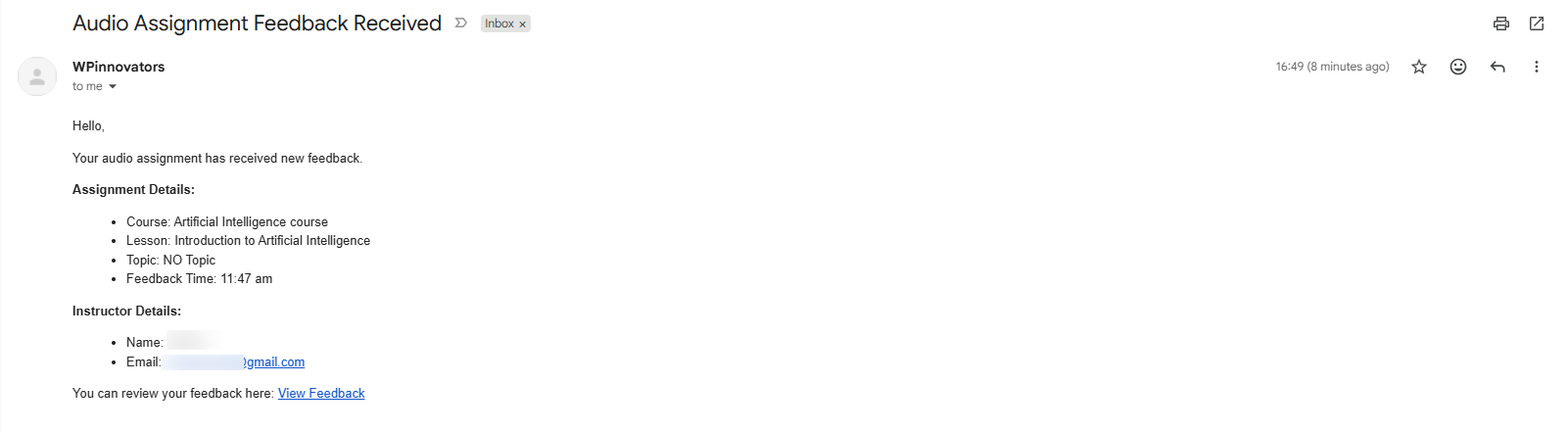
- Student Email Notification: Send an automatic email to the student when an administrator leaves audio feedback on their assignment.
- Student Email Subject & Message Body: Customize the subject line and the content of the student notification email.
Backend:
Frontend:
4. Debug Settings #
- Enable Debug Logs: Activate detailed background logging to track internal operations, errors, and system events. Essential for troubleshooting.

- Debug Logs Retention (Days): Specify the number of days to keep debug logs before they are automatically deleted to save storage space.

Note: The “Debug logs” tab will dynamically become visible in the main settings menu only after you have enabled Debug Logs and saved your settings.
Debug Logs #
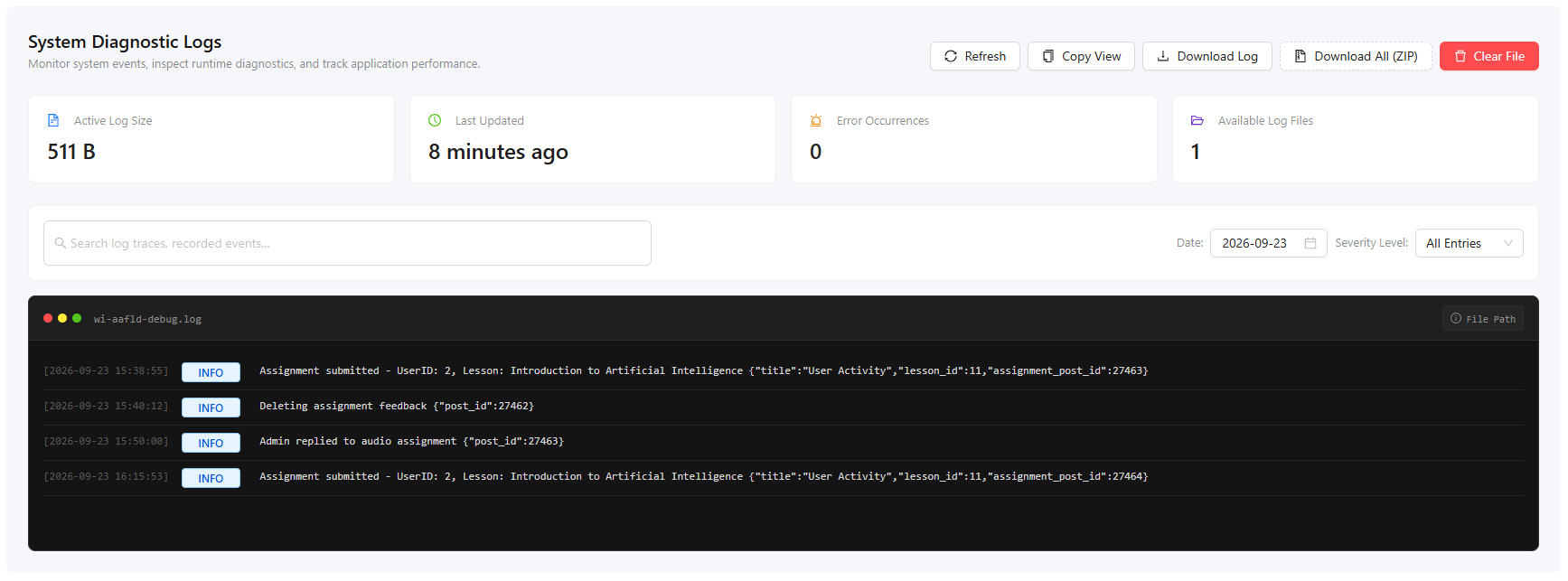
The “Debug Logs” tab displays detailed logs that provide a comprehensive overview of internal operations.
System Information #
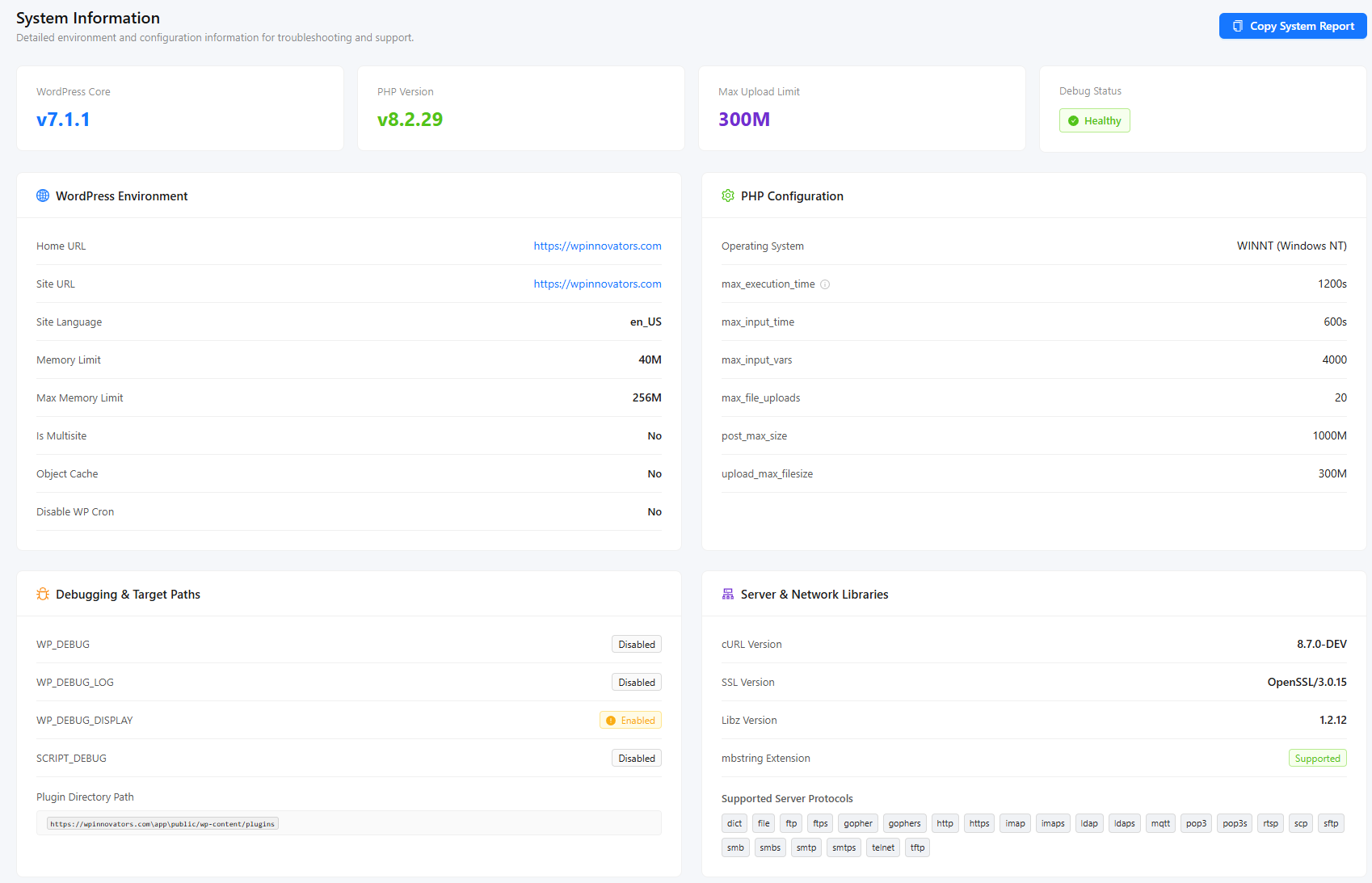
The “System Information” tab showcases your server and system specifications for support purposes.
Frontend Preview (Student Experience) #
Before Submission #
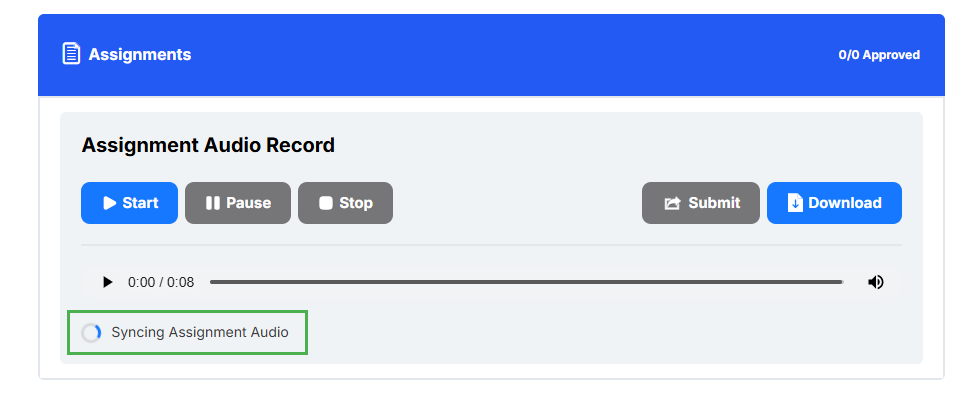
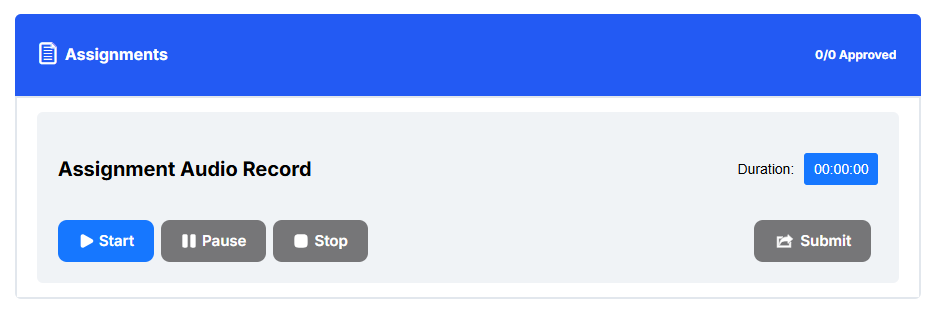
When a student opens the assignment, they will see a sleek, distraction-free recording interface where they can easily record their audio submission. The student can start, pause, and stop the recording before submitting it.
Recording Review #
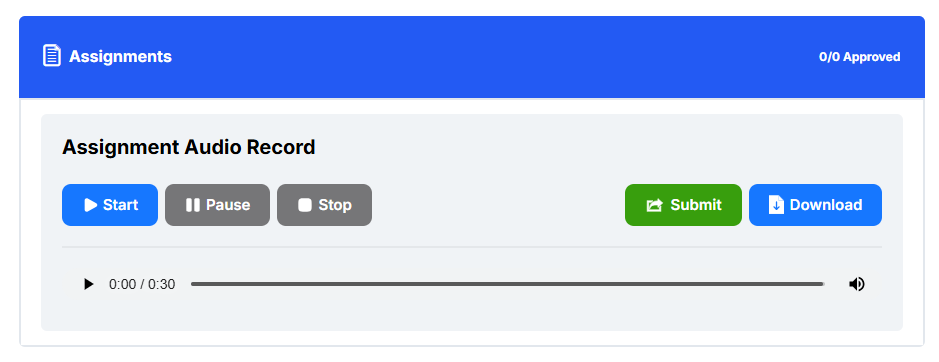
After the student stops recording, the recorded audio is available for playback and download so they can review it before submitting the assignment.
Submission #
When the student is satisfied with the recording, they can press the Submit button to submit the audio assignment.
Viewing Admin Feedback #
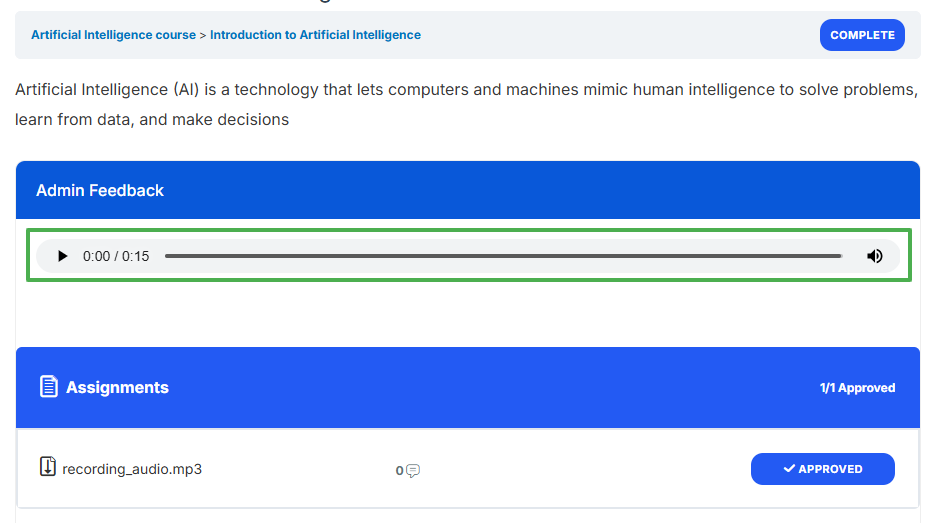
When an admin replies with a voice message, the student will see the admin’s audio reply displayed directly above their own submission on the frontend.
Backend Management (Admin Experience) #
Viewing Submissions #
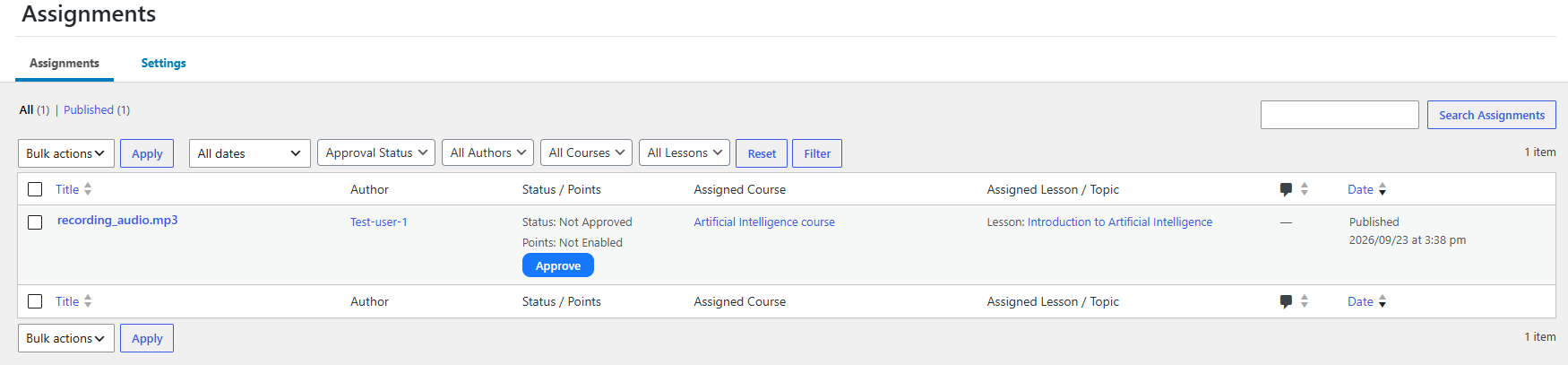
On the backend, Admins will view all audio submissions on the standard LearnDash Assignments listing screen.
Reviewing & Leaving Audio Replies #
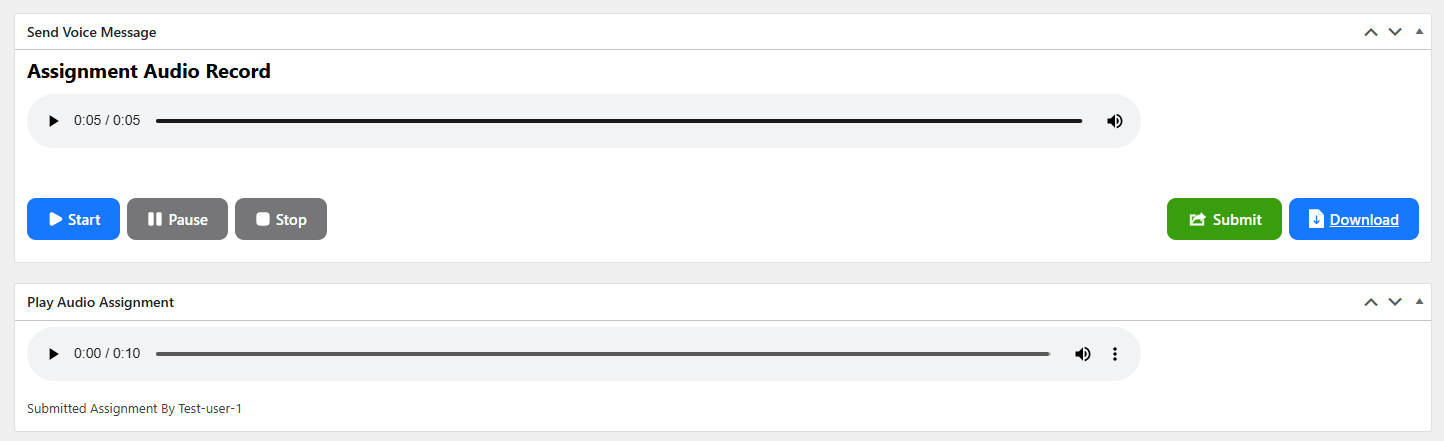
To evaluate a student’s submission, navigate to the LearnDash Assignments page and click the “Edit” option under the respective assignment. The edit screen provides a clean, built-in audio player allowing you to listen to the student’s recording.
Directly from this same screen, admins can also easily record and send a personalized voice message reply back to the student. The interface provides full control to manage, rerecord, or delete your custom audio feedback at any time.
FAQs #
Can I set a maximum time limit for the student’s audio recordings?
Yes! You can effortlessly configure a specific time limit duration for each audio assignment submission to ensure students keep their answers concise.
Does the plugin support uploading very large audio files without failing?
Absolutely. We built a robust “Audio Chunking” feature into the plugin. This means large audio files are automatically split into smaller pieces behind the scenes during upload to bypass strict server upload limits, and then perfectly reassembled on your server.
In Which File Format Can The Admin/Group Leader Download The Recorded Audio?
The default file format for audio recordings is set to .mp3. When downloading an audio assignment, Admins and Group Leaders will get a .mp3 file.
Can The Admin/Group Leader Play The Submitted Audio Assignment Directly On The Site?
Yes, the Admin/Group Leader can directly play audio assignment from the backend.
Can Students Upload And Play A Pre-Recorded Audio File Using The Audio Assignment For LearnDash Add-on?
No, currently students can only submit real-time audio recordings. We have a plan to add the “Upload PreRecorded Audio” feature in the near future.
Are students notified when an admin replies to their assignment?
Yes! The plugin features an automated email notification system. Admins get an email when a student submits an assignment, and students get an email alert when the admin provides feedback.
Can I change or delete the feedback audio if I make a mistake recording it?
Yes, the backend includes a convenient management UI where admins can easily delete their recorded feedback and re-record it if necessary.
Is the plugin ready to be translated into my local language?
Yes, the entire plugin (both the frontend recording interface and the backend admin settings) is 100% translation-ready and adheres to standard WordPress internationalization practices.
Changelogs #
1.4.15
- Fix – Enhanced the licensing module for improved stability and validation.
- Fix – Patched potential security vulnerabilities and enhanced overall plugin stability.
1.4.14
- Fix – Addressed minor UI inconsistencies for a smoother user experience.
1.4.13
- Fix – Resolved minor user interface issues and improved overall layout stability.
1.4.12
- Fix – Implemented crucial security patches and improved overall plugin performance.
1.4.11
- Fix – Addressed identified vulnerabilities to significantly improve overall plugin security.
- Feature – Updated and modernized the user interface for the “Select User Roles” option in the settings tab.
1.4.10
- Fix – Resolved an interface alignment issue to ensure full compatibility with the LearnDash “New Appearance” layout.
1.4.9
- Fix – Fixed a critical error that triggered unexpectedly when attempting to delete all logs simultaneously.
1.4.8
- Fix – Fixed a critical backend error that occurred during the initial plugin activation process.
1.4.7
- Fix – Prevented excessive database bloat by fixing an issue where logs were being continuously inserted on every single page load.
- Feature – Added a new utility feature allowing administrators to selectively delete individual logs or easily delete all logs at once.
1.4.6
- Fix – Ensured proper access control by fixing an issue where users with unselected roles could incorrectly see the audio meta field in assignments.
- Fix – Fixed a display glitch where the email settings tab would disappear while actively editing email settings.
1.4.5
- Fix – Resolved an issue that was preventing automated email notifications from properly triggering for the site administrator.
1.4.4
- Feature – Added a strict no-cache directive to the audio script, effectively preventing browser cache errors during audio playback.
1.4.3
- Feature – Integrated the LAME encoding library for superior audio optimization and quality retention.
- Update – Renamed the “Download FFMPEG” settings label to “Optimize Audio” for better clarity.
1.4.2
- Fix – Resolved a playback issue where incorrect audio files were being referenced in submitted admin feedback.
1.4.1
- Feature – Introduced automatic audio size compression and MP3 format conversion during upload to save server storage space.
1.4.0
- Feature – Introduced a dedicated settings field to select specific user roles authorized to review assignments.
- Feature – Granted the selected user roles full capabilities to review and provide voice feedback on audio assignments.
- Feature – Allowed admins and authorized roles to delete and replace their audio feedback as long as the assignment hasn’t been officially approved.
- Fix – Adjusted the backend user interface timer spacing and corrected mouse cursor interaction states for a better UX.
- Fix – Resolved a display bug causing multiple feedback entries to stack on the frontend, ensuring only the latest feedback is displayed.
1.3.6
- Fix – Fixed a visual bug where the admin audio send buttons were misaligned or failing to display properly.
1.3.5
- Fix – Optimized backend performance by limiting the debug logs database query limit to 10 entries per page.
1.3.4
- Fix – Replaced outdated Dashicons with crisp, high-resolution SVG icons for all audio player controls.
1.3.3
- Fix – Fixed minor display and alignment issues with the audio recording button icons.
1.3.2
- Fix – Resolved an issue with the assignment audio Meta-box failing to properly attach the file.
- Feature – Added a user-friendly browser alert to notify students if they haven’t granted microphone permissions.
1.3.1
- Fix – Addressed various responsive design issues to ensure the interface looks perfect on mobile devices.
1.3.0
- Feature – Implemented automated email notifications for admins when a user submits a new audio assignment.
- Feature – Implemented automated email notifications for students when the admin replies to their submitted assignment.
- Feature – Added dedicated email settings tabs for fine-tuning admin and student notifications.
1.2.3
- Fix – Enhanced and optimized internal database queries to significantly decrease overall database load times.
1.2.2
- Fix – Resolved a cleanup issue to ensure admin feedback is now properly removed when the parent assignment is deleted.
- Feature – Introduced full support for dark mode interfaces.
1.2.0
- Feature – Implemented a highly reliable assignment-based audio chunk file upload and merging system.
- Feature – Relocated the default installation directory for ffmpeg binaries.
- Feature – Added comprehensive error checking and support for ffmpeg, shell exec, and wget server commands.
- Update – Streamlined core audio handling processes by eliminating redundant audio chunk uploads, optimizing database storage, and refining the merging process.
- Update – Implemented widespread improvements and polish to the user interface.
1.1.0
- Feature – Introduced a dedicated option in the global settings for admins to easily enable ffmpeg support.
- Feature – Added advanced chunk recording functionality to drastically improve performance and prevent slow assignment uploads.
- Feature – Added automated, seamless stitching of recorded chunks back into a single unified file on the server.
- Update – Redesigned the user interface to effectively accommodate the new ffmpeg optimization features.
1.0.6
- Feature – Added a visual uploading-progress loader during user assignment submissions for better user feedback.
- Feature – Added a visual uploading-progress loader during admin assignment feedback submissions.
- Feature – Introduced a robust Error/Debug logging system for advanced troubleshooting.
- Fix – Applied minor updates and layout tweaks to the Add-on UI.
1.0.5
- Feature – Empowered admins to seamlessly listen to submitted assignments directly from the backend.
- Feature – Allowed admins to record and send voice message replies back to the submitted assignment.
- Feature – Enabled users to easily listen to the admin’s Audio Reply directly on their assignment page.
- Fix – Applied minor updates and visual enhancements to the Add-on UI.
1.0.4
- Fix – Addressed an issue causing the uploaded assignment delete button to malfunction.
1.0.3
- Fix – Resolved a visual issue with the download icon failing to render correctly.
- Fix – Corrected awkward spacing issues between the audio playback controls and surrounding buttons.
- Feature – Added standardized text filters for all audio section titles and buttons to allow for easier customization.
1.0.2
- Fix – Resolved a critical bug causing audio recording failures specifically within the Safari browser.
1.0.1
- Feature – Added highly-requested support to effortlessly pause and resume active audio assignment recordings.
- Fix – Updated the embedded plugin documentation URL to point to the correct resource.
- Fix – Addressed various responsive UI issues to ensure cross-device compatibility.
- Fix – Resolved several minor bugs to improve overall stability.
1.0.0
- Initial Release.


